
Do you need to check whether an essay meets a word count limit, measure the length of a report before submitting it, or determine the length of text copied from a PDF file? In most cases, you don’t need to count the words manually. Google Docs and Microsoft Word include built-in word-counting tools, while text from a PDF file can be extracted and counted separately. In Excel, you can use a formula to calculate the number of words contained in a cell.
Quick answer: In Google Docs on a computer, open Tools → Word count. In Microsoft Word, check the word count on the status bar or open the Word Count command. For a PDF, copy selectable text into a word counter; if the PDF is a scan, extract the text with OCR first. In Excel, use a formula to count words separated by spaces.
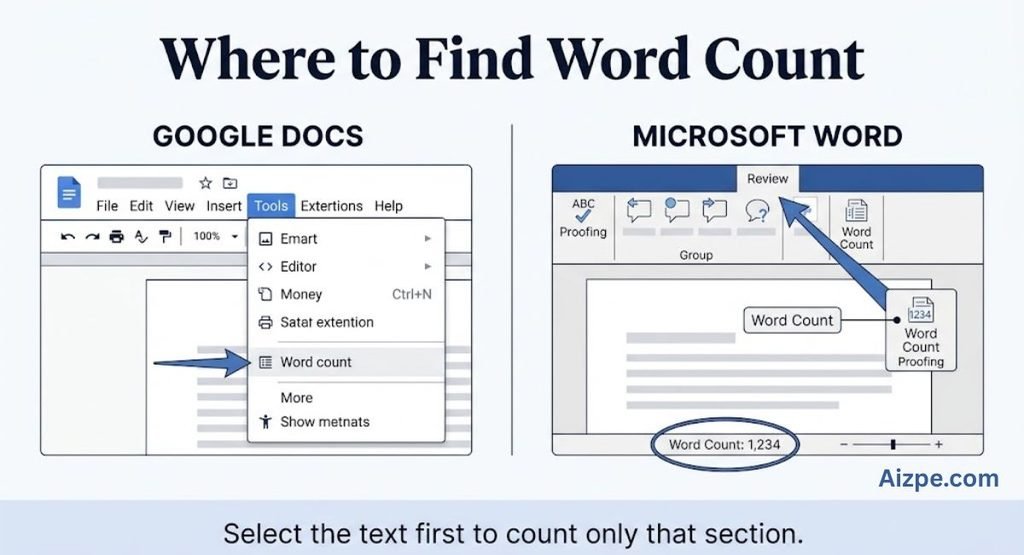
The following explains how to count the content of an entire document or just a selected portion, what to do when a PDF file contains images instead of text, and why two word-counting tools might yield slightly different totals.
How to Count Words in Google Docs
Google Docs has a built-in word count feature that displays the number of words, characters, and pages in a document. On a computer, you can also count the words in a selected paragraph or section, rather than in the entire document.
Count words in the whole document
- Open the document in Google Docs on your computer.
- Select Tools from the top menu.
- Choose Word count.
- Review the number of pages, words, characters, and characters excluding spaces shown in the dialog.
If you need to keep track of a shorter document while you write, enable the “Show word count while typing” option in the word count dialog box, where available. A box displaying the word count will appear near the bottom-left corner. Select this box to view additional statistics.
Count only a paragraph or selected section
- Highlight the exact text you want to measure.
- Open Tools → Word count.
- Read the statistics for the selected text rather than relying on the full-document total.
This is useful when an assignment has a limit for one section, when you are editing an introduction, or when you need to shorten a passage without changing the rest of the document.
Count words in Google Docs on a phone
In the Google Docs mobile app, open the document and tap the three-dot menu. Look for Word count and review the available statistics. Menu labels and placement can change slightly with app updates, so if you cannot find the option, consult the official Google Docs instructions.
Official instructions: Count the words in a document — Google Docs Help
How to Count Words in Microsoft Word
Microsoft Word counts words as you type. Depending on the version and the view you are using, the total may appear in the status bar at the bottom of the window. You can also open the “Word Count” feature to get more detailed statistics.
Method 1: Check the status bar
- Open your document in Microsoft Word.
- Look along the bottom of the Word window for the word-count total.
- If the total is visible, click it to open the detailed Word Count dialog.
- Review the document statistics shown in your version of Word.
If Word Count is not visible, right-click the status bar and enable Word Count if that option is available in your version. In Word for the web, make sure you are in Editing view if the count is missing.
Method 2: Open Word Count from the ribbon
- Open the document.
- Select the Review tab.
- Choose Word Count, if it appears in your version.
- Check the total and any additional statistics you need.
Count only selected text in Word
Select the sentence, paragraph, or section you wish to count. In compatible versions, Word will display the count for your selection in the status bar. You can click on the count or open the “Word Count” feature for more details. This is useful when a piece of writing, an application, an essay, or a client assignment specifies a word limit for a particular part of the document.
If a formal submission has specific rules about footnotes, endnotes, text boxes, captions, or references, check those requirements and the options available in your Word version before relying on the total.
Official instructions: Show word count — Microsoft Support
How to Count Words in a PDF
A PDF is a file format, not a guarantee that the text it contains can be selected. Some PDF files contain actual text; others are scans or photographs of printed pages. The appropriate method depends on the type of file you have.
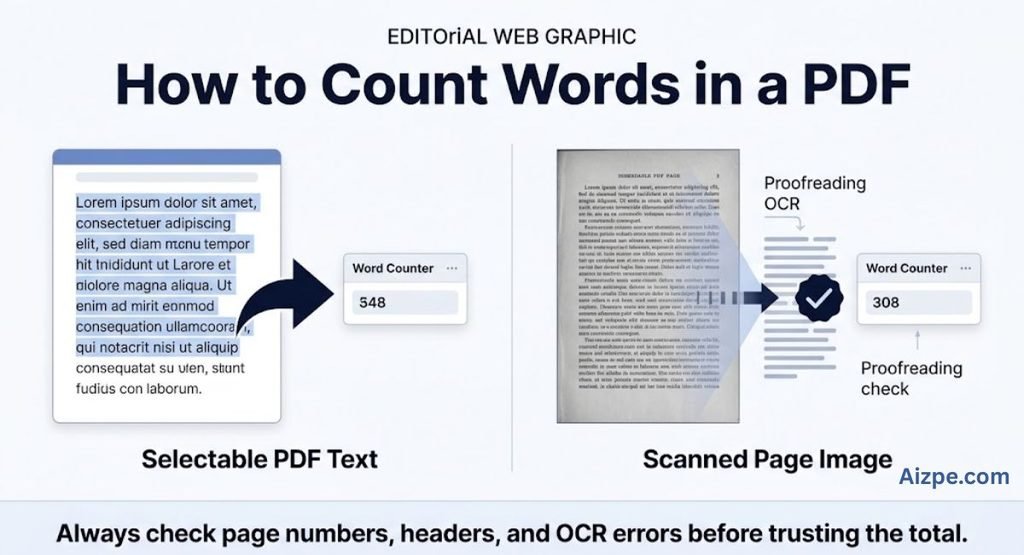
Method 1: Count selectable PDF text
- Open the PDF in your browser or a PDF reader.
- Try selecting a sentence with your cursor. If the text highlights normally, it is likely selectable.
- Select the section you need. Select the whole document only if you want the full text counted.
- Copy the selected text.
- Open the Aizpe Tools Word Counter and paste the text into the input area.
- Review the result, then remove page numbers, repeated headers, footers, or unrelated text if they were copied with the main content.
Count copied text with the Aizpe Tools Word Counter.
For a long PDF, check a few pages after copying to make sure the text order has been preserved. Multi-column pages, tables, footnotes, and headers can be copied in an unexpected order.
Method 2: Count words in a scanned PDF using OCR
- If you cannot select text, the PDF may contain images of pages. OCR (optical character recognition) attempts to identify the letters within these images and convert them into editable text. This process is not perfect, so we recommend reviewing the result before using it in situations that require a strict word limit.
- Upload the PDF to Google Drive.
- Where supported, right-click the file and choose Open with → Google Docs.
- Let Google Docs attempt to extract the text from the scanned pages.
- Compare the extracted text with the original, especially names, numbers, punctuation, and words in small or blurry print.
- Copy the corrected text into a word counter.
Google’s instructions: Convert PDF and image files to text with Google Drive
Why a PDF word count may be wrong
A word count for a PDF file may be inaccurate if the extracted text contains recognition errors, repeated page headers, page numbers, fragmented words, or table content that appears in the wrong order. If you are performing a word count for a contract, an academic document, or an application, compare the extracted text against the PDF file and remove any elements that should not be included.
How to Count Words in Excel
Excel does not provide a universal Word Count button for a cell, but you can use a formula to estimate the number of words. The formula below assumes that words are separated by spaces. It also replaces common tabs and line breaks with spaces and returns zero for a blank cell.
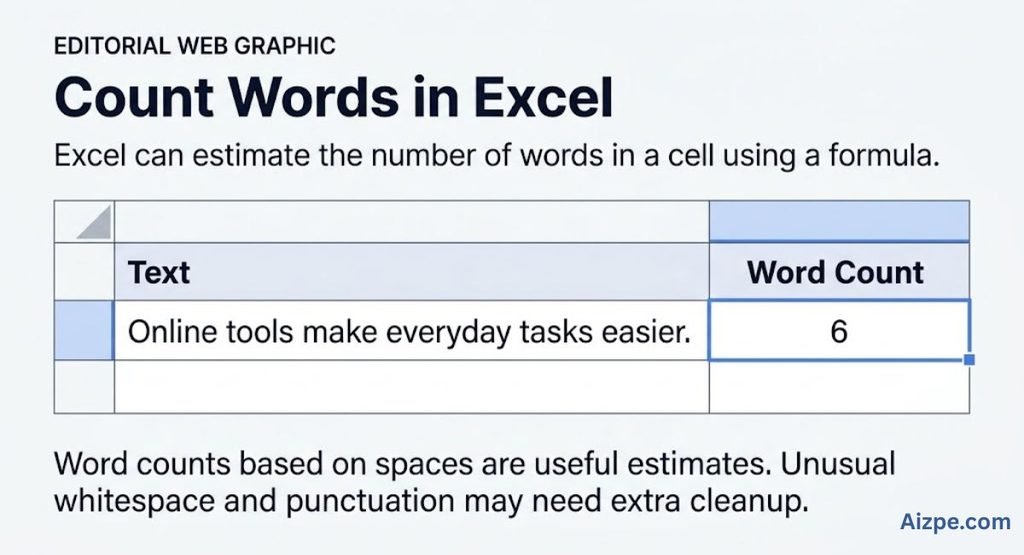
If the text is in cell A1, enter this formula in another cell:
=LET(txt,SUBSTITUTE(SUBSTITUTE(SUBSTITUTE(A1,CHAR(9),” “),CHAR(10),” “),CHAR(13),” “),clean,TRIM(txt),IF(clean=””,0,LEN(clean)-LEN(SUBSTITUTE(clean,” “,””))+1))
How the Excel formula works
- SUBSTITUTE replaces tabs and line breaks with ordinary spaces.
- TRIM removes leading and trailing spaces and reduces repeated ordinary spaces.
- LEN counts the characters before and after spaces are removed.
- The formula counts the remaining spaces and adds one; if the cell is blank after trimming, it returns zero.
This is a practical estimate for ordinary space-separated text, not a universal linguistic word counter. Nonbreaking spaces, unusual separators, punctuation, or special formatting may need extra cleanup. The LET function also requires a version of Excel that supports it.
Count words in multiple rows
If each row contains a separate text entry, put the formula in the adjacent column for the first row. Then use the fill handle to copy it down. Update the cell reference for each row if Excel does not adjust it automatically. Review a few results manually before using the totals in a report.
Quick Reference: Which Method Should You Use?
| Where the text is | Recommended method | Important note |
| Google Docs | Tools → Word count | Select text first for a partial count. |
| Microsoft Word | Status bar or Review → Word Count | Options vary by version and view. |
| Selectable PDF | Copy text into a word counter | Check headers, page numbers, and reading order. |
| Scanned PDF | Use OCR, proofread, then count | Recognition errors can change the total. |
| Excel cell | Use a word-count formula | Works best with ordinary space-separated text. |
Why Do Word Counts Differ Between Tools?
It is possible for Google Docs, Microsoft Word, Excel, and an online word counter to show slightly different totals for the same text. That does not automatically mean one tool is broken. Each tool may handle document elements and unusual text differently.
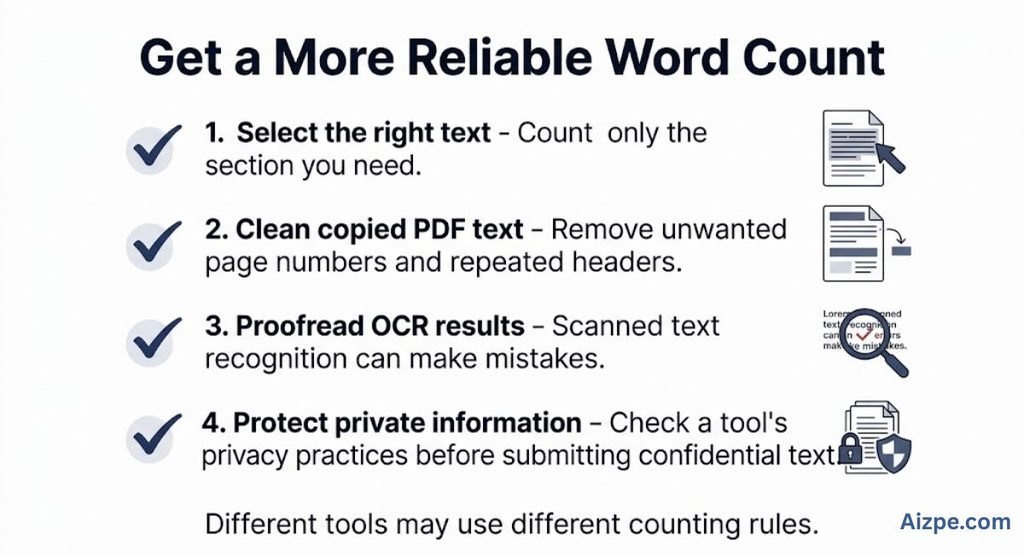
Hyphenated words and symbols: Applications may treat a hyphenated expression, an abbreviation, a URL, or a symbol differently. The exact rules can vary.
Footnotes, headers, and text boxes: Some tools exclude certain document areas by default or provide settings that affect what is counted. Check the rules for your assignment or publisher.
Copied PDF formatting: Page numbers, repeated headings, columns, and tables can add extra text or disrupt reading order when copied.
Extra spaces and line breaks: Text copied from websites, PDFs, or email may contain repeated spaces, tabs, or hidden formatting characters. Cleaning the text can improve consistency.
Different word-count rules: A simple formula that counts spaces will not necessarily match a full word-processing application in every situation.
Best practice: If a teacher, journal, employer, or client specifies a counting method, use that method. Consistency with the submission rules matters more than making every tool display the same number.
What to Do When the Word Count Is Missing
Google Docs: Open Tools → Word count on a computer, or look in the three-dot menu in the mobile app.
Microsoft Word: Check the status bar and, if needed, open the Word Count command from the ribbon. In Word for the web, check that you are in Editing view.
PDF: Try selecting a line of text. If it cannot be selected, use OCR to extract it before counting.
Excel: Check that the formula points to the correct cell and that your Excel version supports the functions used.
If the menu looks different from these instructions, use the current official help page for your app. Software interfaces change, and the same command may appear in a different place across desktop, web, and mobile versions.
Privacy Tips Before Using an Online Word Counter
Before pasting a document into any online service, consider whether the text contains confidential or personal information. This is especially important for contracts, private correspondence, unpublished work, customer records, or documents containing financial or identity details.
- Read the tool’s privacy policy and check how submitted text is processed.
- Do not assume that every online tool processes text only in your browser or automatically deletes it.
- Use a trusted built-in word counter for sensitive documents if you cannot verify an online service’s data practices.
- Remove passwords, account numbers, personal identifiers, and other information that the tool does not need.
Privacy practices depend on the specific service and how it is implemented. Avoid making assumptions based only on the fact that a tool runs in a browser.
Common Word-Counting Mistakes to Avoid
Counting the entire document by accident: Select the exact paragraph or section when only part of the text needs to meet a limit.
Forgetting submission rules: Check whether references, captions, appendices, footnotes, or endnotes count toward the required total.
Counting unclean PDF text: Remove repeated headers, footers, page numbers, and unrelated copied material before trusting the result.
Treating every tool as identical: Different applications can use different counting rules, especially for unusual punctuation and document elements.
Trusting OCR without proofreading: Scanned text can contain misread letters, missing punctuation, or incorrect numbers. Review it before counting.
Using a basic spreadsheet formula for every kind of text: A formula based on spaces is useful for ordinary text but may not match a word processor for complex cases.
Frequently Asked Questions
How do I count words in Google Docs?
Open the document on a computer and choose Tools → Word count. You can select a section first to count only that text. The mobile app also offers Word count through its menu.
How do I count words in Microsoft Word?
Check the word count on the status bar, or open Word Count from the Review tab where available. Select text first if you need a partial count.
How can I count words in a PDF?
If the PDF text is selectable, copy the relevant text into a word counter. If it is a scan, extract the text with OCR and proofread it before counting.
Can I count words in only one paragraph?
Yes. Highlight the paragraph in Google Docs or Word, then open or check the word-count feature for the selected text.
Does Google Docs count text inside tables?
Google Docs can count much of the document text, including text in tables, but its documented default excludes headers, footers, and footnotes unless you select a section. Check the official instructions and your specific document if the count is critical.
How do I count words in Excel?
Use a formula that counts ordinary space-separated words in a cell. The example in this guide handles common tabs and line breaks, but it may need adjustment for unusual whitespace or separators.
Why is my word count different in Google Docs and Word?
The applications may treat punctuation, hyphenated expressions, footnotes, and other document elements differently. Use the method required by your instructor, publisher, or client.
Can I count words on my phone?
Yes. The Google Docs mobile app includes a Word count option in its menu. You can also copy text into a word counter if it is appropriate to share that text with the service.
Is it safe to paste private text into an online word counter?
It depends on the service’s actual data practices. Read its privacy policy and avoid submitting confidential information if you cannot verify how the text is handled.
What is the easiest way to count words copied from a website or email?
Copy only the passage you need, paste it into a word counter, and review the result for extra links, signatures, headings, or formatting that came along with it.
Final Thoughts
The easiest way to count words depends on where your text is stored. Google Docs and Microsoft Word provide built-in counters, selectable PDF text can be copied into a word counter, scanned PDFs need text recognition first, and Excel can estimate word totals with a formula.
For a quick check of text copied from an essay, report, email, or PDF, use the free Aizpe Tools Word Counter. Before submitting work with a strict word limit, review the text you counted and follow the counting rules given by your school, publisher, employer, or client.
Related reading | Sentence Counter Online